Working on getting network sharing online is the next major phase of the rebuild. The goal for this phase is to create a dedicated SMB container that can expose selected storage locations over the network while still keeping the permission model controlled and predictable.
Network Share Scope#
Before building the container, I took some time to review what systems and services may eventually use this share. The intended targets include:
iDRAC server profile exports
UDM SE configuration exports
FortiSwitch configuration exports
Pi-hole configuration backups
Container and virtual machine backups
Proxmox vzdump backups
ISO install files
Other core service configuration backups
After reviewing the likely backup methods, a pure SMB/CIFS approach appears to be enough for this phase. I originally considered adding NFS as well, but most of the expected use cases can either use SMB directly or be handled manually from a workstation. From memory of the previous build, most services that I use in my home lab don’t even support automatic backup offloading to a network location anyway.
The backup targets fall into three broad categories:
Proxmox-native content is already handled through Proxmox storage. The
SCHBKUPSpool is configured in Proxmox with the appropriate content types forISO Image,Container template,Backup,Snippets, andImport.Network-exported backups are systems that can write directly to a network share. A good example is iDRAC server profile exports, which supports network share destinations.
Manual staging covers anything that does not support automated network offload cleanly. In those cases, I can export the file manually from a web interface or CLI and place it into the correct folder from my workstation.
Now that the scope is clear, the plan is to create a small Debian-based LXC container dedicated to SMB sharing.
Adding ISOs and Templates#
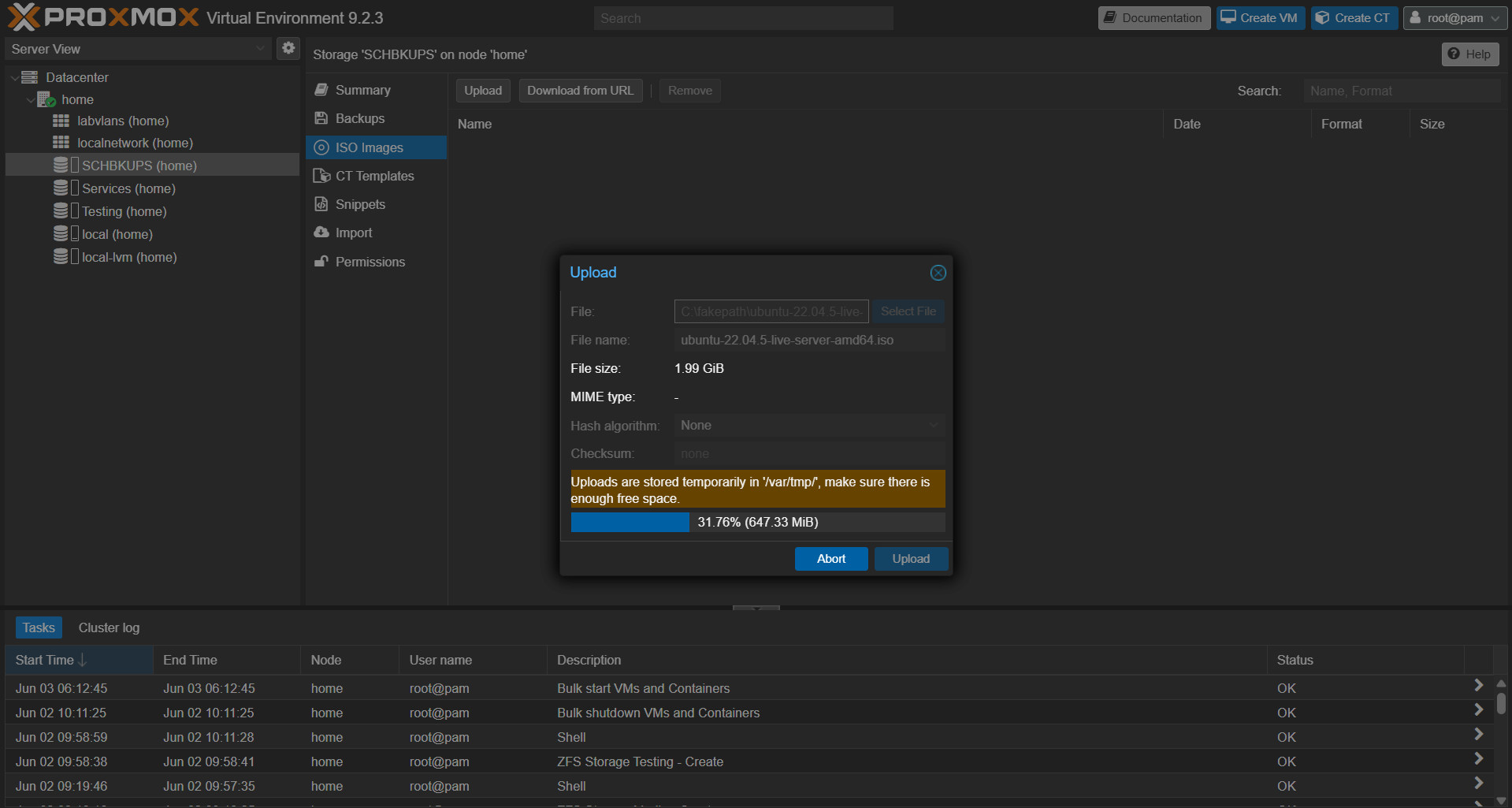
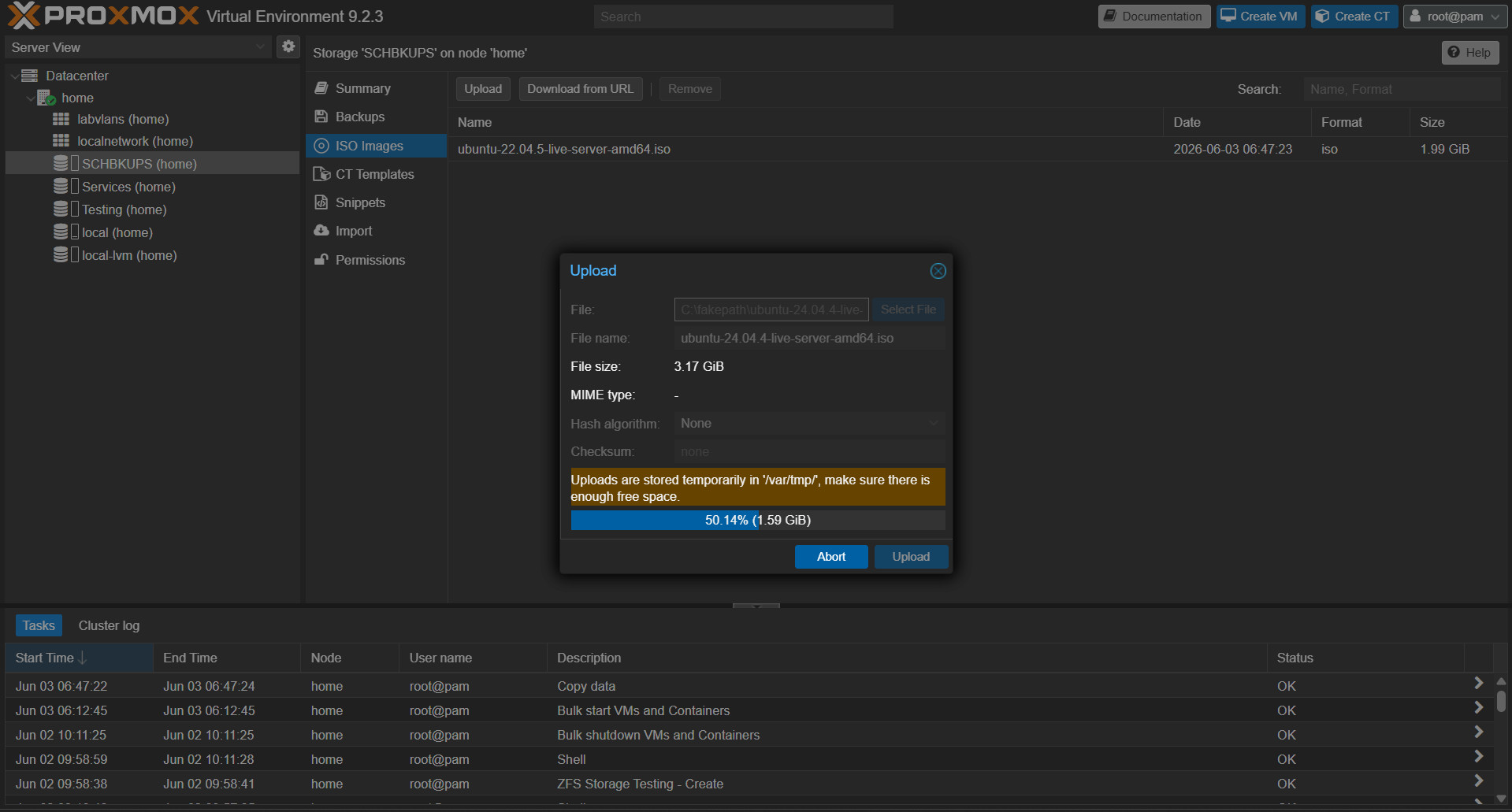
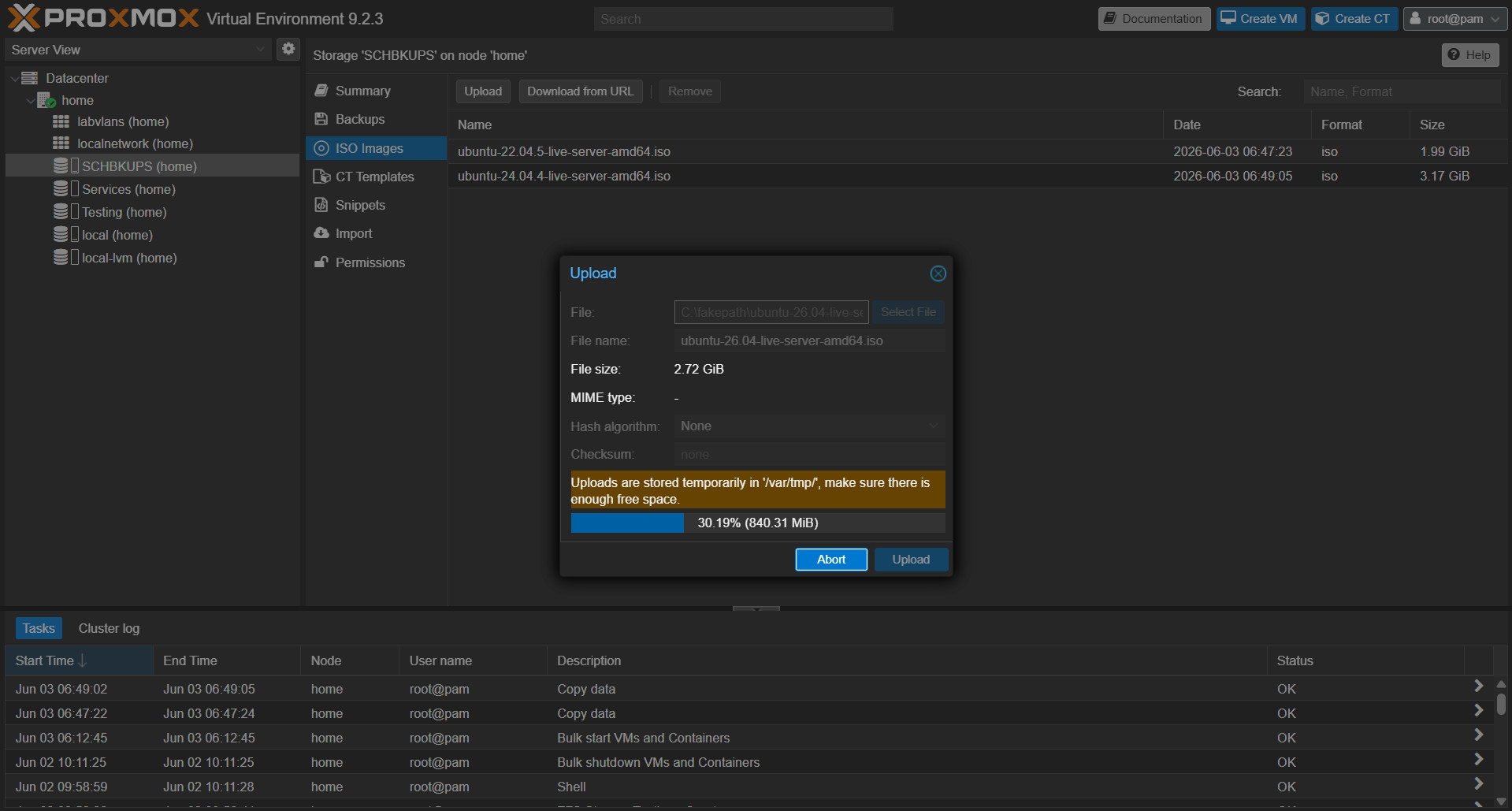
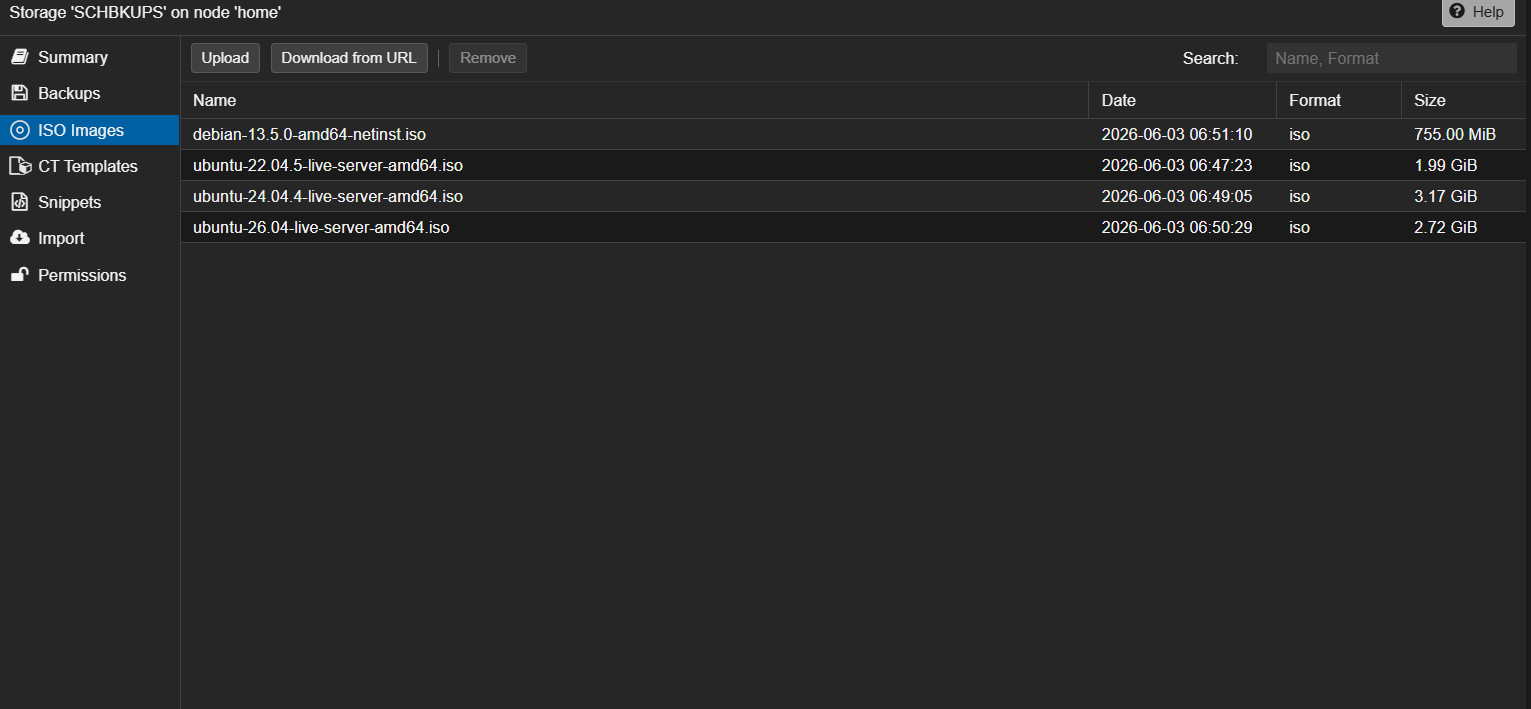
At this time, I added a few common ISOs to the SCHBKUPS pool. Proxmox makes this extremely easy, and I was able to directly add ISOs via the GUI from my workstation. However, it’s also possible to use a direct download link and have Promxox download and place the ISO directly into the dedicated storage.
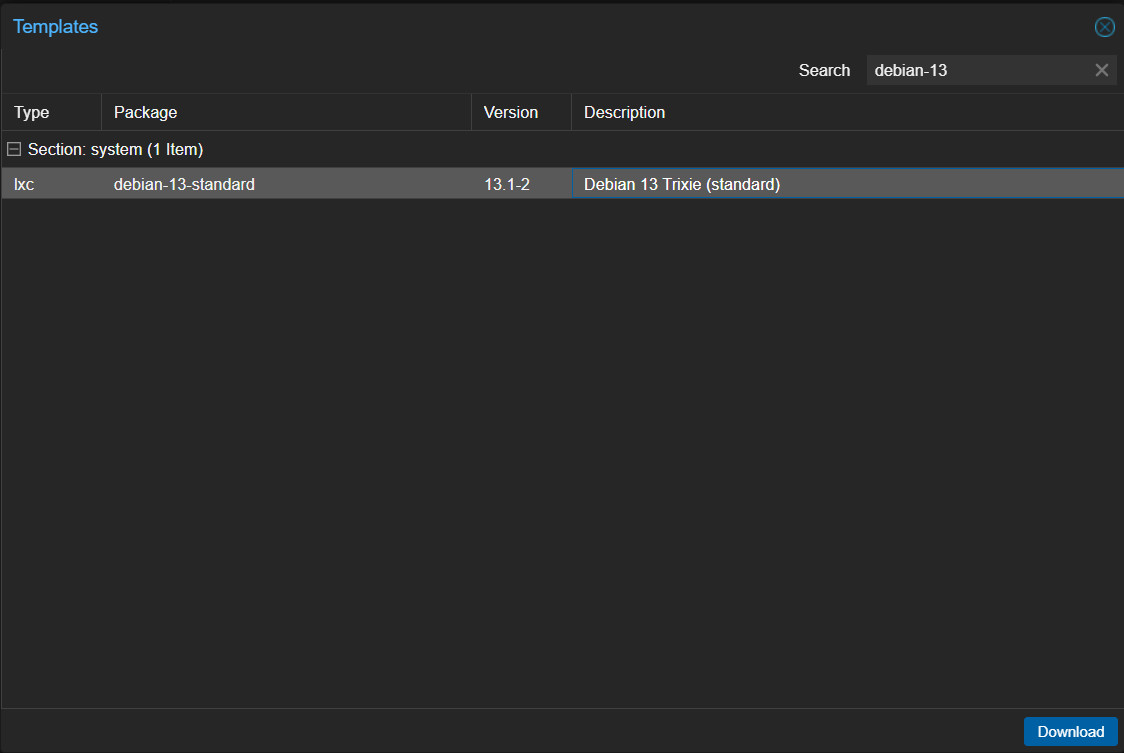
I also added a template for Debian 13.5.0 LTS. Adding templates is extremely easy in the GUI. I simply searched for a template to add, debian-13, validated the description, and downloaded within a few seconds to use during container setup.
Creating the SMB Container#
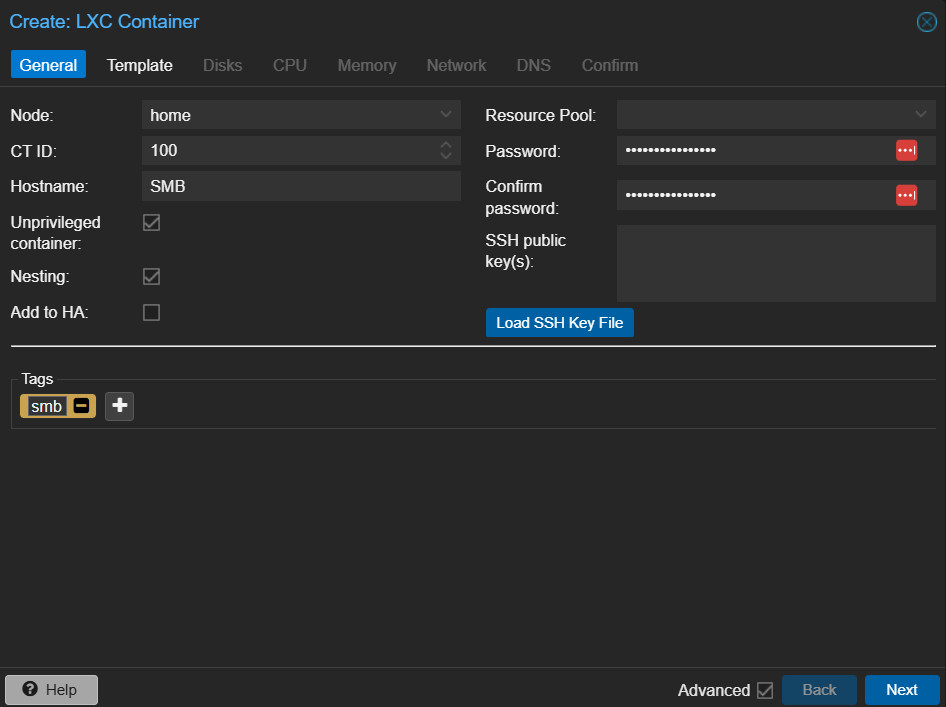
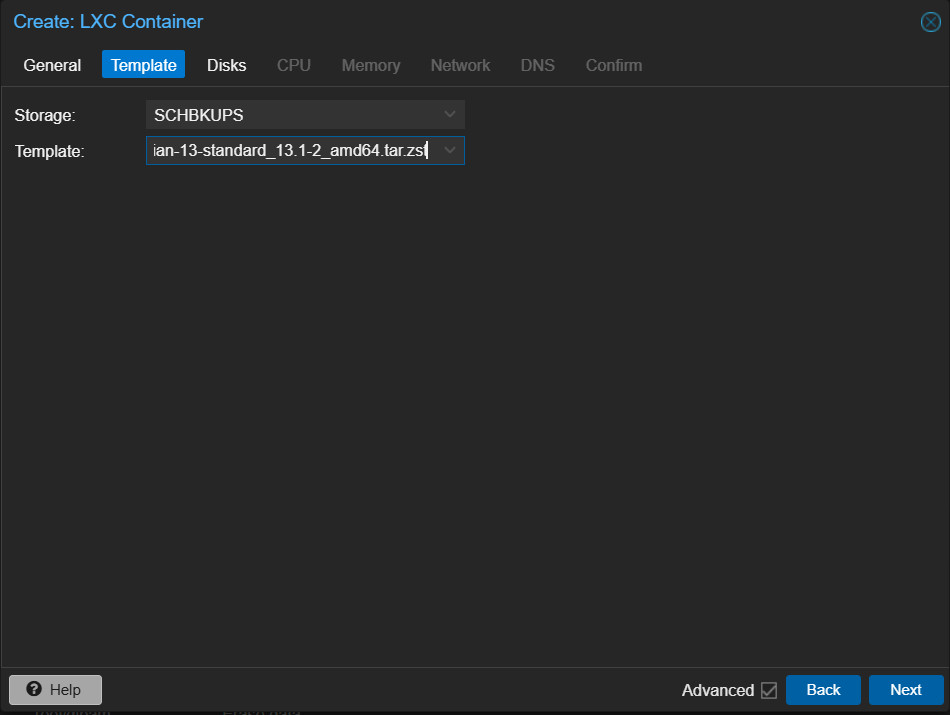
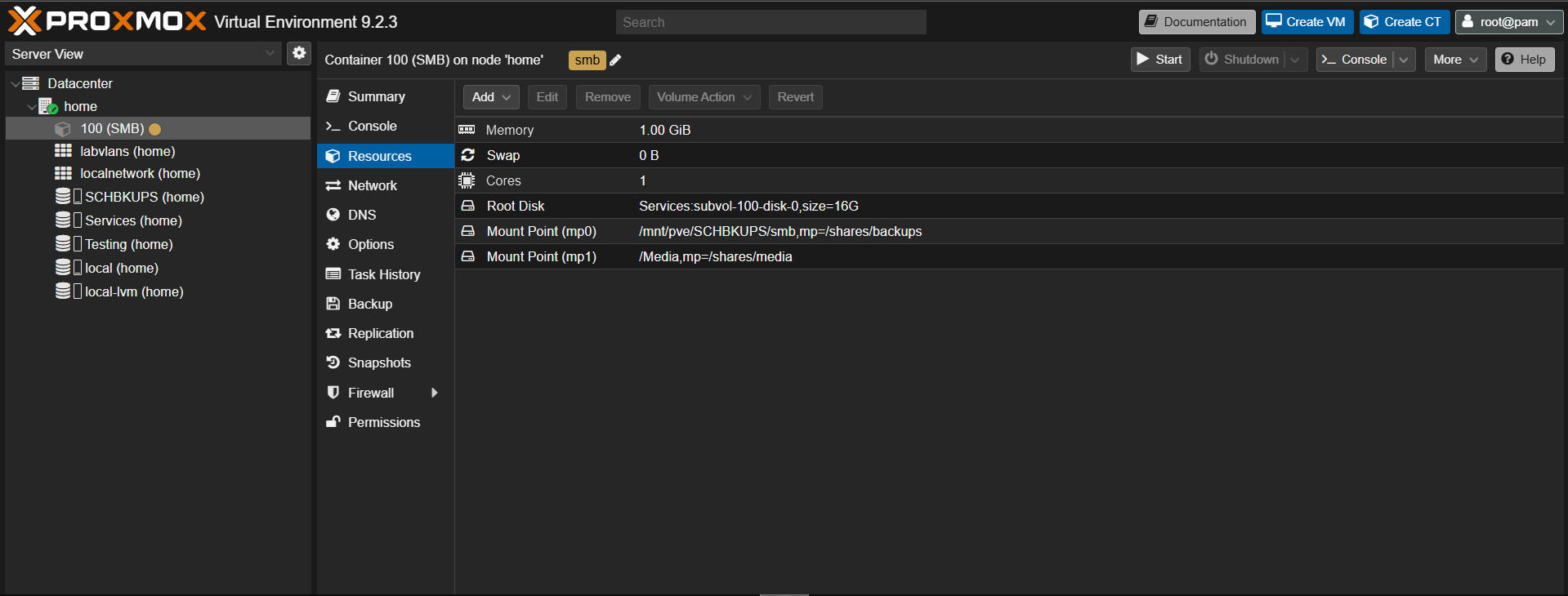
For this container, I used a Debian 13 template. The container is intentionally lightweight because its only role is to run Samba and expose selected bind-mounted folders.
CT ID: 100
Hostname: SMB
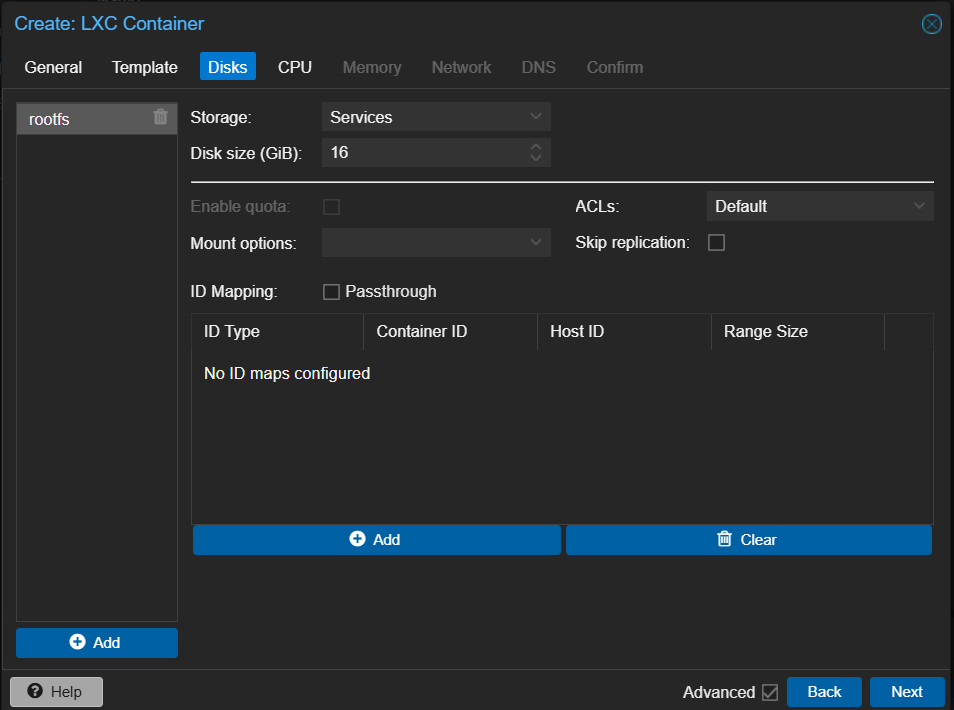
Root disk: 16 GB
CPU: 1 core
Memory: 1 GB
Swap: 0
Network: Services Network
Bridge: srv11
IP: DHCP with UDM SE reservation
The following container ID scheme is being used:
100 range: core/critical services
200 range: non-essential services
300 range: temporary or experimental containers
Since this SMB container is part of the core infrastructure, it belongs in the 100 range.
For networking, I placed the container on the Services Network using the SDN bridge created in a previous phase:
Bridge: srv11This allows the container to sit directly on the Services VLAN. Since the container provides a network service, it belongs on the Services Network rather than the Management Network.
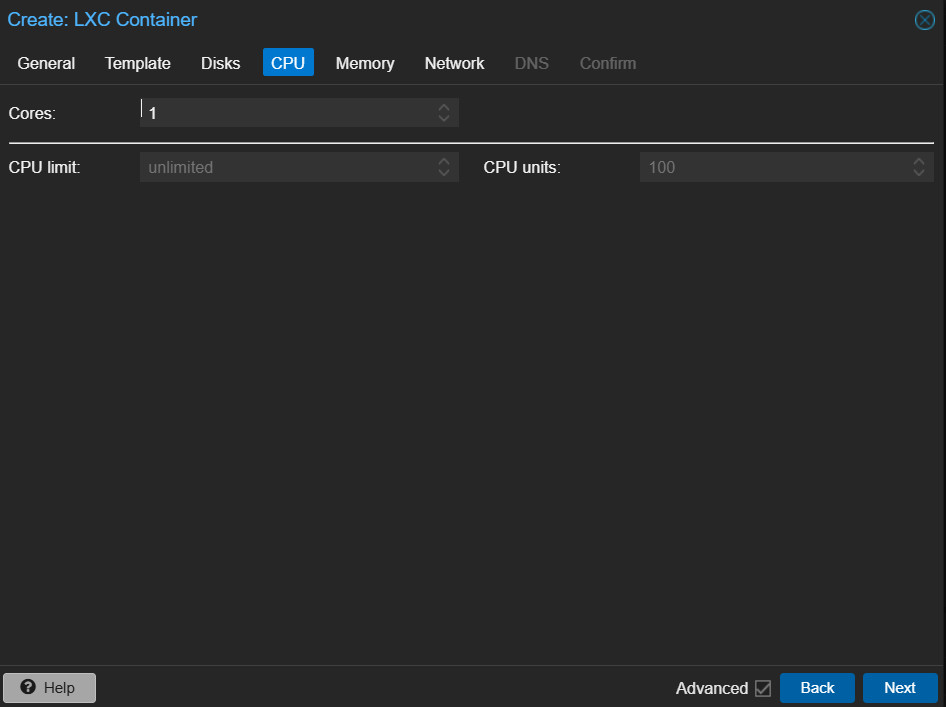
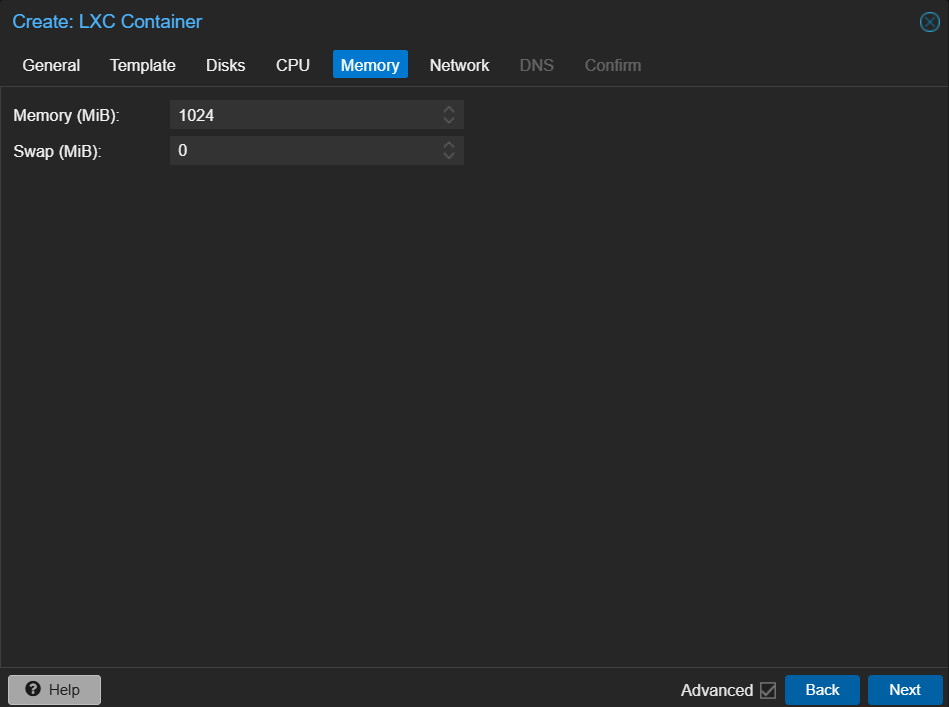
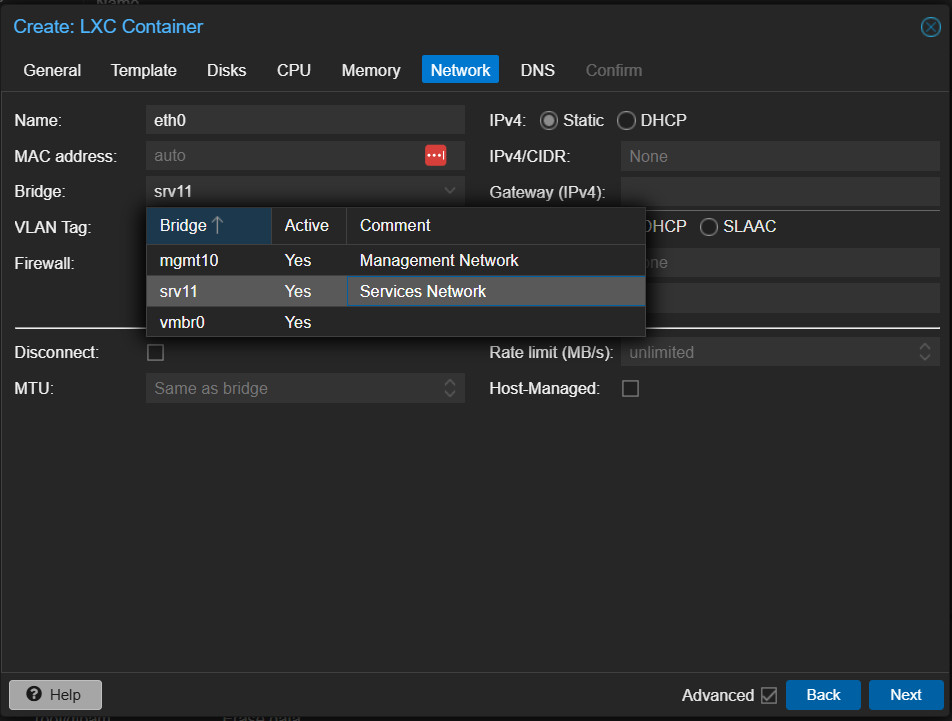
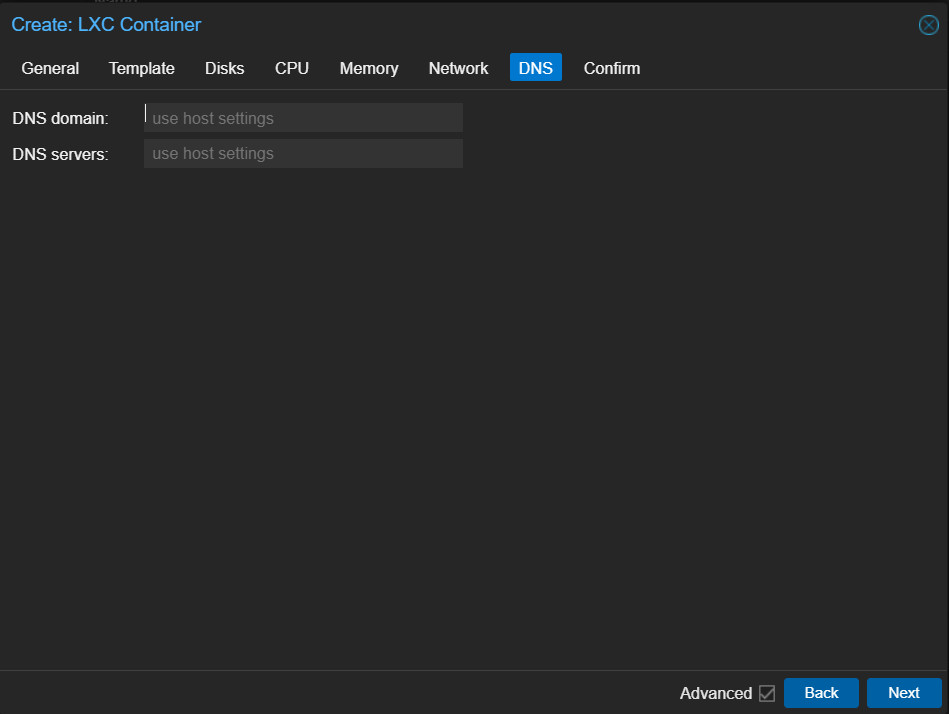
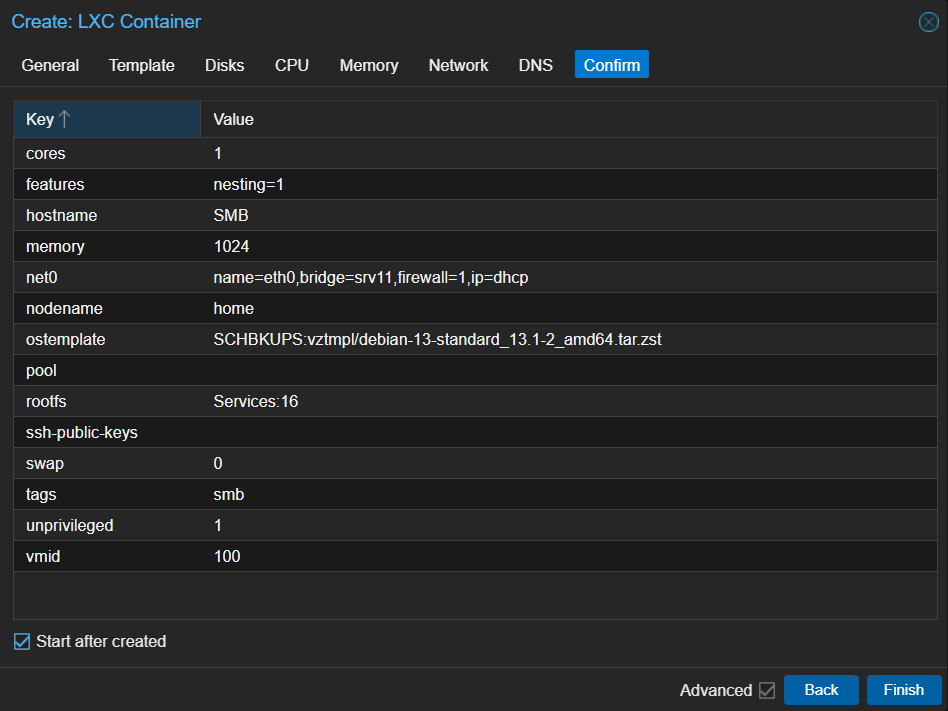
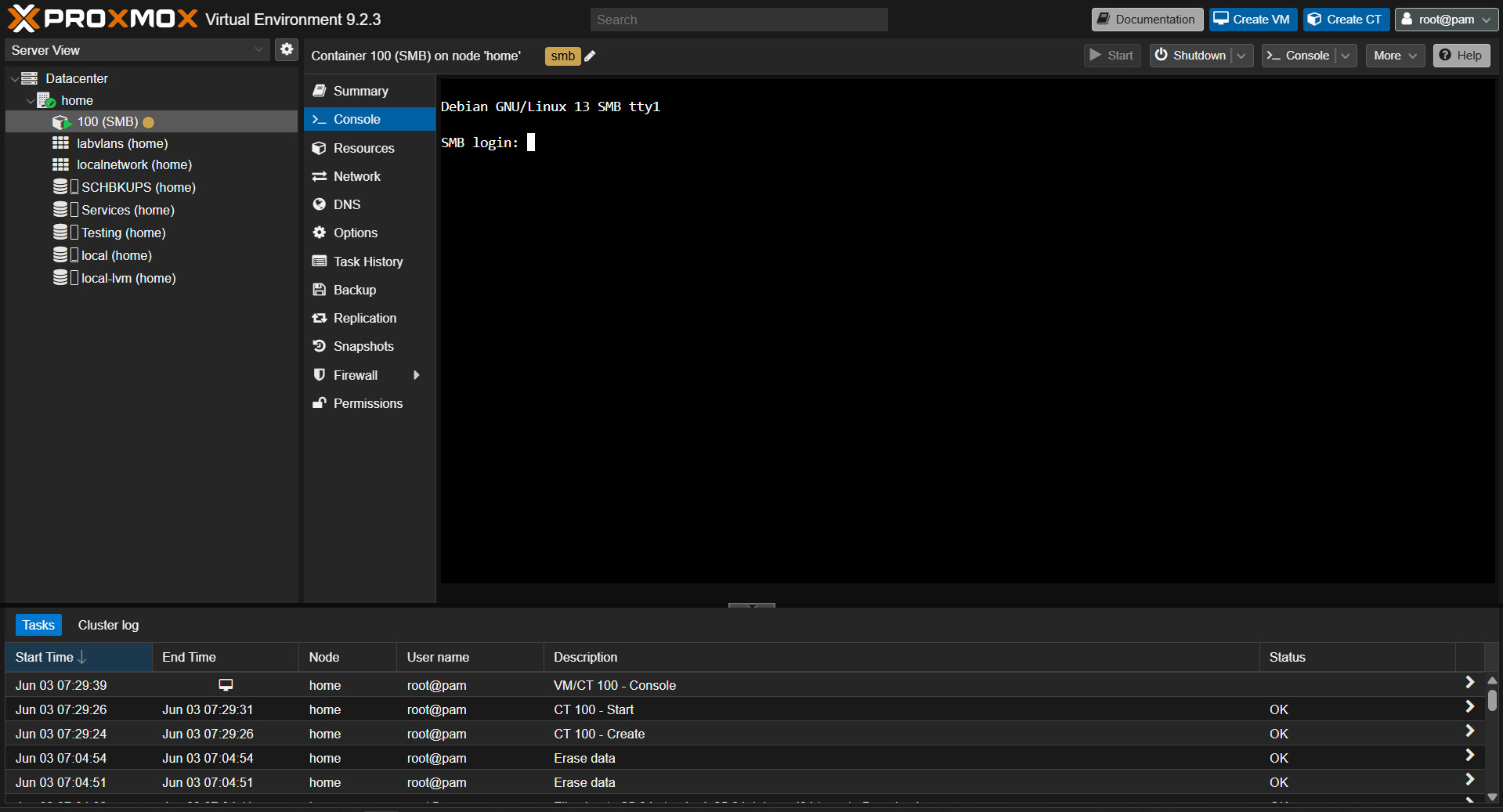
After creating the container, I confirmed that it received an address from the Services subnet:
root@SMB:~# ip addr
2: eth0@if17: <BROADCAST,MULTICAST,UP,LOWER_UP> mtu 1500
    inet 172.16.11.184/24 brd 172.16.11.255 scope global dynamic eth0
I also verified that the VLAN/firewall behavior was working as intended. The container could reach the Services gateway but could not ping the Management gateway:
root@SMB:~# ping -c 4 172.16.10.1
4 packets transmitted, 0 received, 100% packet loss

root@SMB:~# ping -c 4 172.16.11.1
4 packets transmitted, 4 received, 0% packet loss
After confirming the network placement, I reserved the container’s IP address in the UDM SE so that CT 100 maps cleanly to 172.16.11.100.
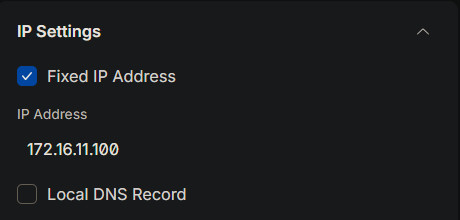
After a reboot, the container showed the expected reserved address.
root@SMB:~# ip addr
2: eth0@if21: <BROADCAST,MULTICAST,UP,LOWER_UP> mtu 1500
    inet 172.16.11.100/24 brd 172.16.11.255 scope global dynamic eth0
Installing Samba#
Inside the container, I installed Samba and rsync, the latter of which I’ll use when Proxmox Backup Server is running in a future planned project.
apt install samba rsync -yI also installed ACL support.
apt install acl -yACLs are not strictly required for a basic SMB share, but they are useful here because I want scoped access. Specifically, I want one administrative user with broad access and one limited user for iDRAC exports.
Restructuring SCHBKUPS Layout#
The SCHBKUPS storage pool already existed from the storage implementation phase. Before configuring Samba, I reviewed the folder structure:
/mnt/pve/SCHBKUPS
├── dump
├── import
├── infrastructure
├── lost+found
├── services
├── snippets
└── template
The Proxmox-managed folders should stay at the top here.
dump
import
snippets
template
Those are managed by Proxmox and should not be exposed through SMB. To keep SMB-managed content separate, I created a dedicated smb folder and moved the existing infrastructure and service backup folders into it.
cd /mnt/pve/SCHBKUPS

mkdir smb
mv infrastructure smb/
mv services smb/
The resulting layout is cleaner and will map more easiy to avoid exposing more than a single share.
/mnt/pve/SCHBKUPS
├── dump
├── import
├── lost+found
├── snippets
├── template
└── smb
    ├── infrastructure
    └── services
This separates Proxmox-managed storage content from SMB-managed backup content.
Adding SCHBKUPS Bind Mount#
Instead of exposing multiple mount points, I bind-mounted the unified SMB folder into the container.
pct stop 100
pct set 100 -mp0 /mnt/pve/SCHBKUPS/smb,mp=/shares/backups
pct start 100
/etc/pve/lxc/100.conf
arch: amd64
cores: 1
features: nesting=1
hostname: SMB
memory: 1024
mp0: /mnt/pve/SCHBKUPS/smb,mp=/shares/backups
net0: name=eth0,bridge=srv11,firewall=1,hwaddr=BC:24:11:96:FE:11,ip=dhcp,type=veth
ostype: debian
rootfs: Services:subvol-100-disk-0,size=16G
swap: 0
tags: smb
unprivileged: 1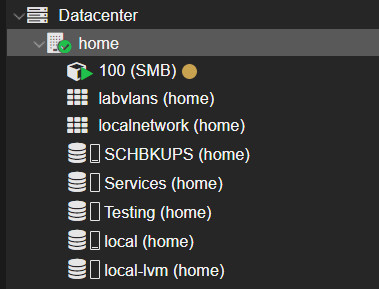

Creating SMB Users and Groups#
The initial permission model is intentionally simple. I’ll create two users, one for shannon, and one for idrac.
The shannon user should be able to manage all SMB backup content, while idrac should only be able to access the server backup folder used for iDRAC profile exports.
Inside the SMB container, I created predictable groups.
groupadd -g 2000 smbadmins
groupadd -g 2100 idrac
Then I created the users and added them to their appropriate groups.
useradd -u 2000 -g smbadmins -M -s /usr/sbin/nologin shannon
useradd -u 2100 -g idrac -M -s /usr/sbin/nologin idrac
The -M flag prevents a home directory from being created. The -s /usr/sbin/nologin option prevents the accounts from being used for shell access. These accounts are used for SMB authentication, so there is no need to create a home directory, nor enable shell access to the container with these users.
After adding the users, I created Samba passwords.
smbpasswd -a shannon
smbpasswd -a idrac
The passwords were randomized and saved in the password manager.
Finally, I enabled the Samba users.
smbpasswd -e shannon
smbpasswd -e idrac
Applying SCHBKUPS Permissions#
Because this is an unprivileged LXC, container IDs are mapped on the Proxmox host. For example, a container UID/GID for 2000 maps on the Proxmox host as 102000. A container UID/GID for 2100 maps on the Proxmox host as 102100.
On the Proxmox host, I set the base ownership for the SMB-managed backup tree.
chown -R 102000:102000 /mnt/pve/SCHBKUPS/smb
chmod -R 2770 /mnt/pve/SCHBKUPS/smb
This makes the backup tree owned by the mapped shannon user and smbadmins group. The 2770 mode gives full access to the owner and group, removes access for others, and uses the setgid bit so new folders inherit the parent group.
Then I used ACLs to give the idrac user limited access.
setfacl -m u:102100:--x /mnt/pve/SCHBKUPS/smb
setfacl -m u:102100:--x /mnt/pve/SCHBKUPS/smb/infrastructure
setfacl -R -m u:102100:rwx /mnt/pve/SCHBKUPS/smb/infrastructure/servers
setfacl -R -m d:u:102100:rwx /mnt/pve/SCHBKUPS/smb/infrastructure/servers
This allows idrac to traverse the parent folders and then grants full access only to the intended target directory and subfolders in /mnt/pve/SCHBKUPS/smb/infrastructure/servers. The idrac user cannot access unrelated backup folders such as service backups or networking exports as intended.
Configuring Backups Share#
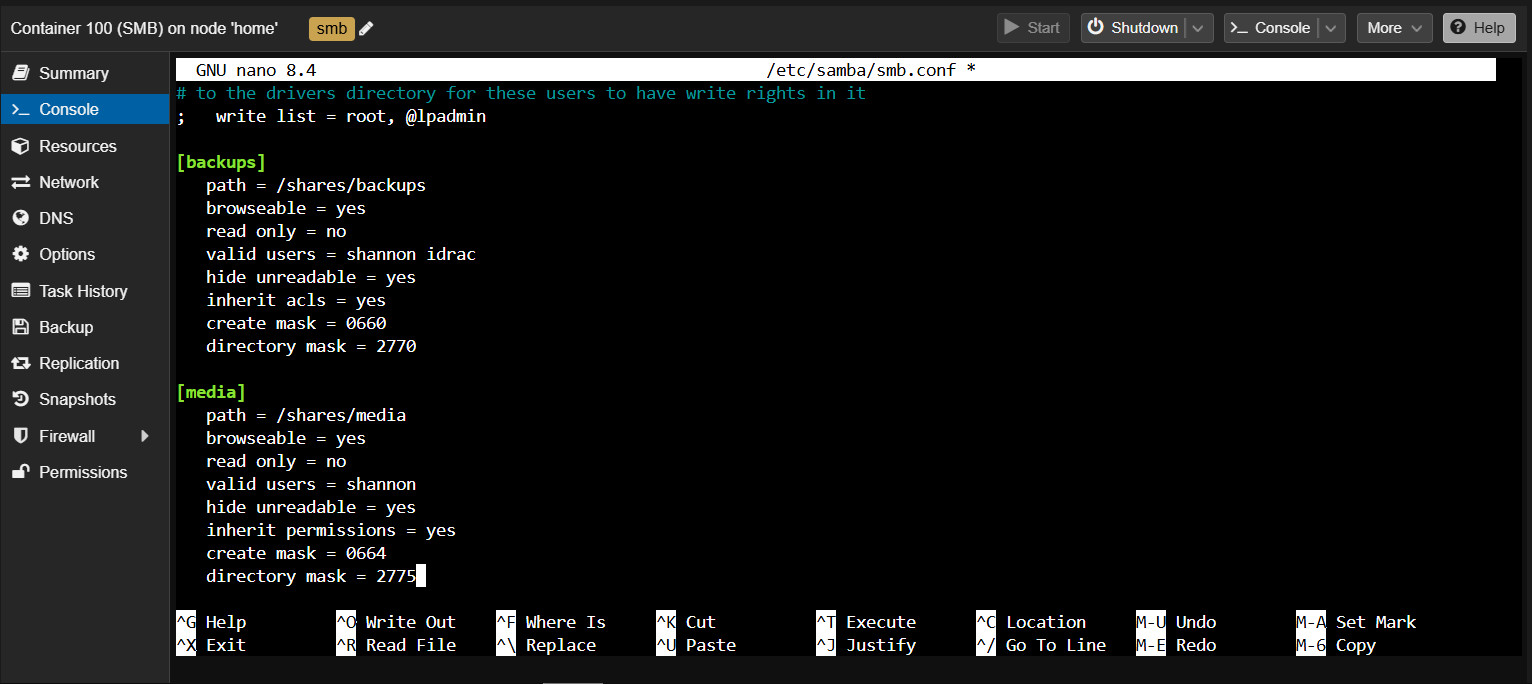
Back on the SMB container, I added the backup share to the bottom of the /etc/samba/smb.conf configuration.
[backups]
   path = /shares/backups
   browseable = yes
   read only = no
   valid users = shannon idrac
   hide unreadable = yes
   inherit acls = yes
   create mask = 0660
   directory mask = 2770
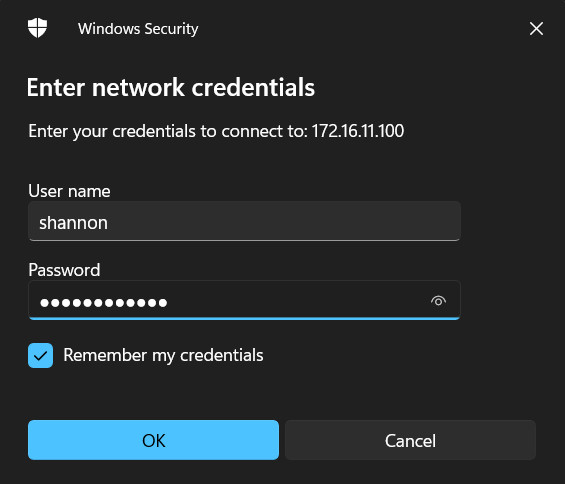
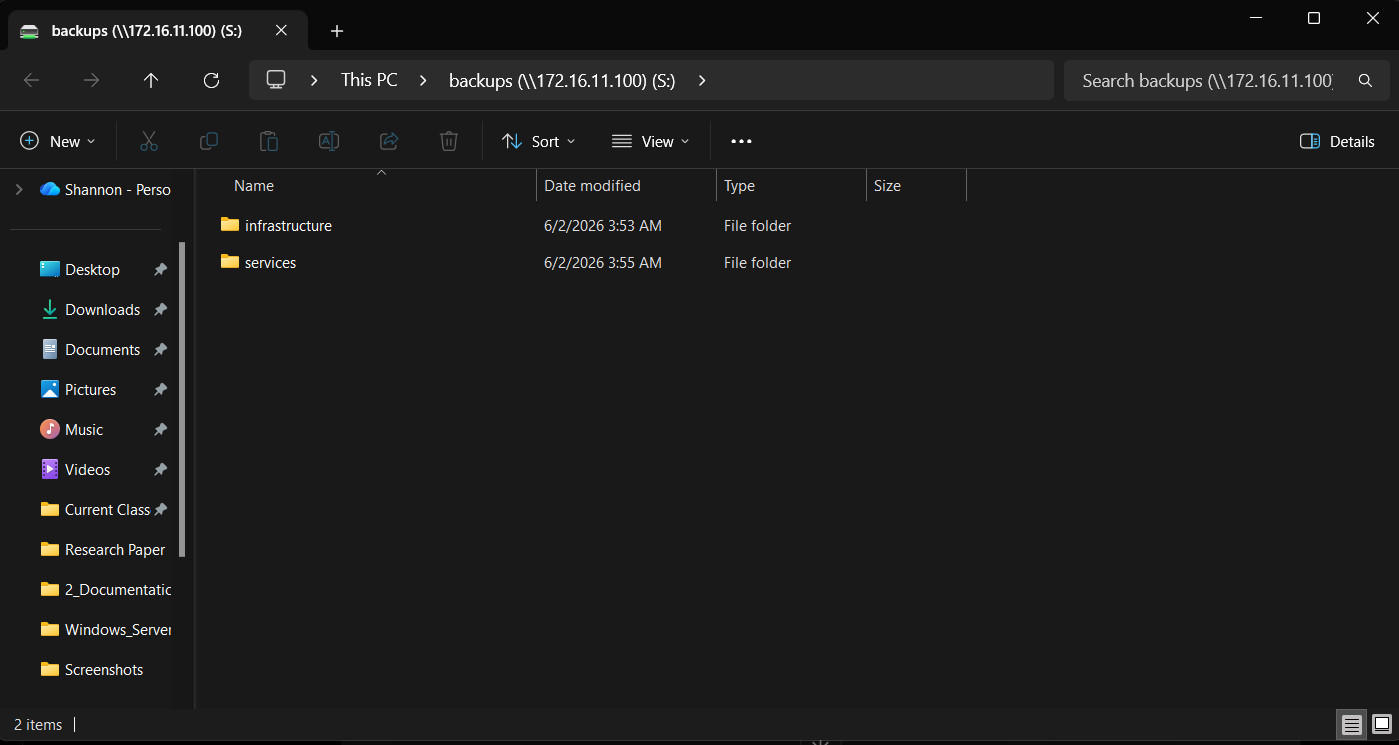
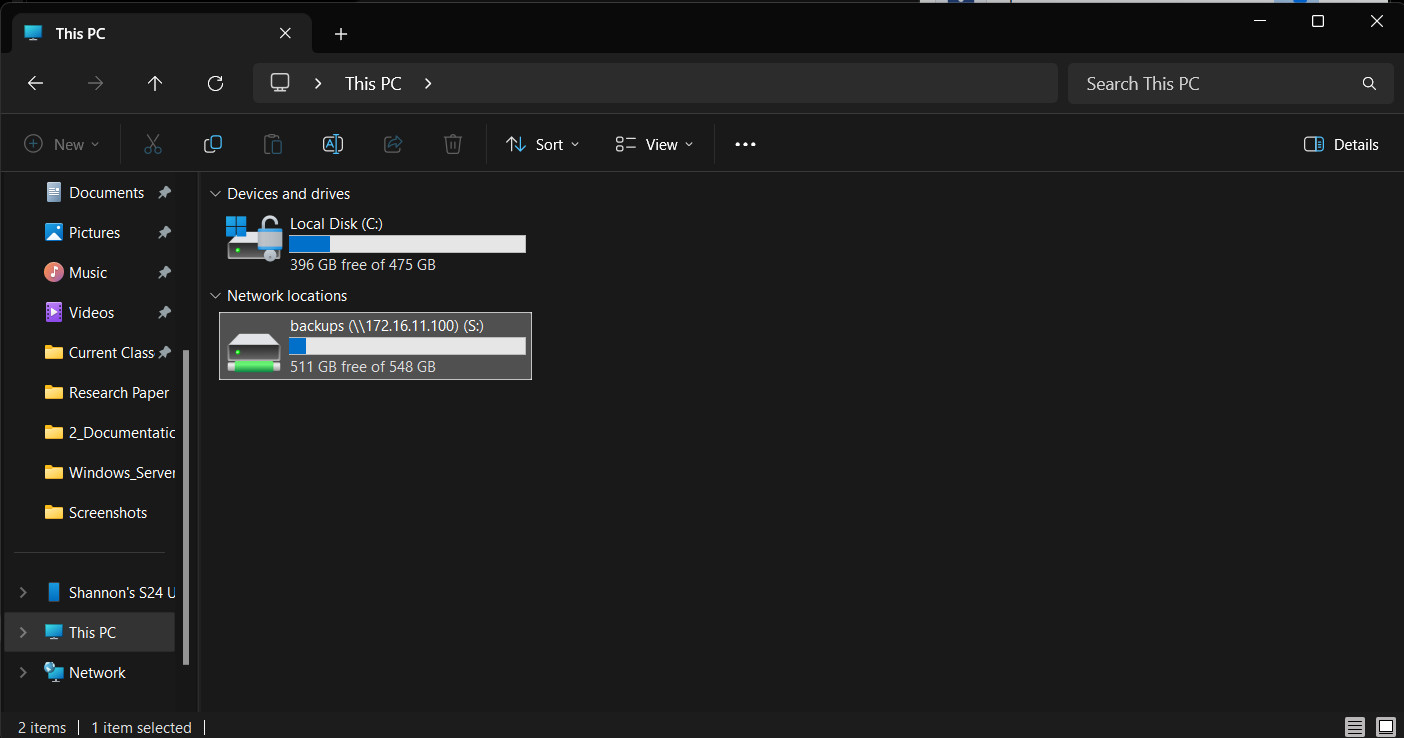
This exposes one share at \\SMB\backups. The shannon user can manage the full share. The idrac user can authenticate to the same share but is limited by the filesystem ACLs.
After saving the configuration, I validated and restarted Samba.
systemctl restart smbdThe service came back online successfully.
root@SMB:~# systemctl status smbd --no-pager
* smbd.service - Samba SMB Daemon
     Loaded: loaded (/usr/lib/systemd/system/smbd.service; enabled; preset: enabled)
     Active: active (running)
     Status: "smbd: ready to serve connections..."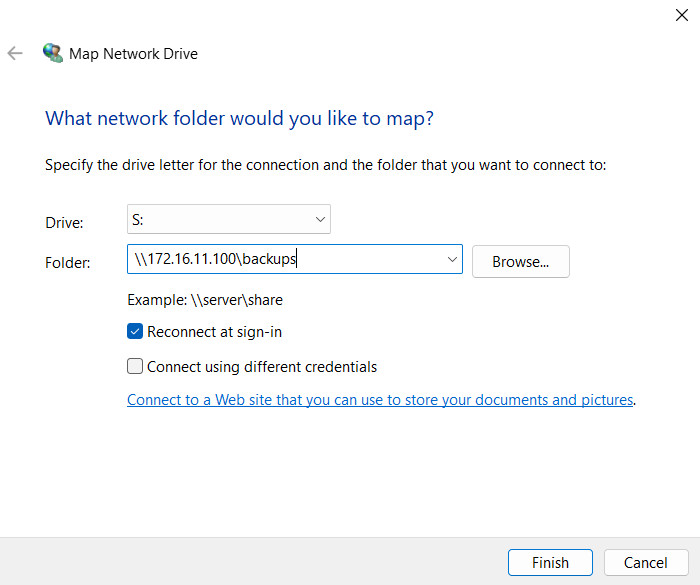
SMB Media Share Scope#
While configuring the SMB container, I also decided to expose the Media pool over the network so I can manage the media library and GameShelf content from my workstation when needed.
This share has a different permission goal than the backup share.
The backup share is mostly controlled by administrative users and scoped backup accounts. The media pool is different because future services may need to create folders, move files, rename content, delete old files, generate metadata, or otherwise manage the library directly through bind mounts. I don’t want SMB access to create a permission mismatch that later prevents those services from working with content added manually.
shannoncan manage media content over SMB.- Future media services can still manage files created over SMB.
- SMB does not become the owner/permission authority for the media pool.
- New files and folders should inherit a shared media group.
To accomplish these goals, I’ll use a group philosophy and create a shared group that I can grant services access to, provided they have the proper group ID assigned during creation.
Creating Media Group#
Inside the SMB container, I created a dedicated media group and added the existing shannon SMB user to it.
groupadd -g 3000 media
usermod -aG media shannon
root@SMB:~# id shannon
uid=2000(shannon) gid=2000(smbadmins) groups=2000(smbadmins),3000(media)
root@SMB:~# getent group media
media:x:3000:shannonAgain, because this is an unprivileged LXC, the container GID 3000 maps to the Proxmox host GID as 103000. That means the Proxmox host needs to use GID 103000 when assigning group access to the underlying media datasets.
Applying Shared Group to PVE Host#
On the Proxmox host, I changed the group ownership of the two media datasets to the mapped media group.
chgrp -R 103000 /Media/Library /Media/GameShelfThen I made directories group-writable and setgid so new folders inherit the media group.
find /Media/Library /Media/GameShelf -type d -exec chmod 2775 {} \;
find /Media/Library /Media/GameShelf -type f -exec chmod 0664 {} \;
2 in 2775 enables the setgid bit on directories, which helps new folders inherit the parent group instead of creating inconsistent group ownership.
Default ACLs for Media Group#
I also added ACLs so the shared media group keeps access as new files and folders are created.
setfacl -R -m g:103000:rwx /Media/Library /Media/GameShelf
setfacl -R -m d:g:103000:rwx /Media/Library /Media/GameShelf
This gives the mapped media group read/write/execute access and makes that access inheritable for new content.
This is important because the media pool will eventually be used by multiple services. Files created over SMB should not become unusable to the services that later need to scan, move, rename, clean up, or organize the same content. The shared group model gives approved services a common permission layer, assuming those services are later configured to use the same group model (usually with environment variables when using Docker).
For future containers or services that write to this pool, it’s important to make sure they use the same shared group. Base group settings will no longer work, and all future installations will need to be added to the specific group in order to write to the intended target pool.
Reworking the Media Layout#
My first attempt was to bind mount the parent /Media path directly:
pct set 100 -mp1 /Media,mp=/shares/media,acl=1However, this did not work correctly because Library and GameShelf are separate ZFS child datasets:
Media
Media/Library
Media/GameShelf
Inside the container, those child datasets appeared as nobody:nogroup and did not expose the expected group or ACL permissions. I fixed this by bind mounting the child datasets directly while still presenting them under a single /shares/media path inside the SMB container.
pct set 100 -mp1 /Media/Library,mp=/shares/media/Library,acl=1
pct set 100 -mp2 /Media/GameShelf,mp=/shares/media/GameShelf,acl=1
Inside the container:
/shares/media/Library
/shares/media/GameShelf
SMB Path:
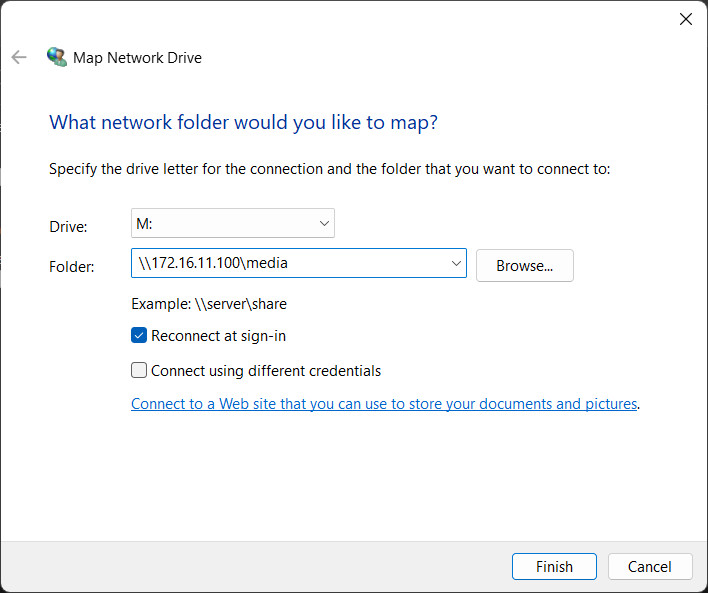
\\SMB\mediaThis is a cleaner model than the original because I intended to share two folders instead of one for the shannon user. I’m glad the original plan did not work as expected because the adjustment simplifies the model even further and avoids needlessly exposing multiple share endpoints.
Configuring Media Share#
I added the media share to the bottom of the /etc/samba/smb.conf configuration.
[media]
   path = /shares/media
   browseable = yes
   read only = no
   valid users = shannon
   force group = media
   create mask = 0664
   directory mask = 2775
   force create mode = 0664
   force directory mode = 2775
   inherit acls = yes
   inherit permissions = yes
This allows only the shannon SMB user to access the media share, while forcing created files and folders into the shared media group. The masks ensure new files are writable by the group, and new directories inherit the shared group behavior.
After updating the Samba configuration, I validated and restarted the service again.
systemctl restart smbdValidation#
To confirm the permission model worked, I tested file and folder creation as the shannon user inside the SMB container:
pct exec 100 -- runuser -u shannon -- touch /shares/media/Library/test.txt
pct exec 100 -- runuser -u shannon -- mkdir /shares/media/Library/testfolder

pct exec 100 -- runuser -u shannon -- touch /shares/media/GameShelf/test.txt
pct exec 100 -- runuser -u shannon -- mkdir /shares/media/GameShelf/testfolder
The created files and folders showed the expected ownership and permissions.
drwxrwsr-x+ 2 shannon media 2 Jun  3 17:30 test-media-group-folder
-rw-rw-r--+ 1 shannon media 0 Jun  3 17:30 test-media-group.txt
drwxrwsr-x+ 2 shannon media 2 Jun  3 17:30 test-gameshelf-group-folder
-rw-rw-r--+ 1 shannon media 0 Jun  3 17:30 test-gameshelf-group.txt
This confirms that files created through SMB are owned by shannon, assigned to the shared media group, and remain writeable by the group for future services.
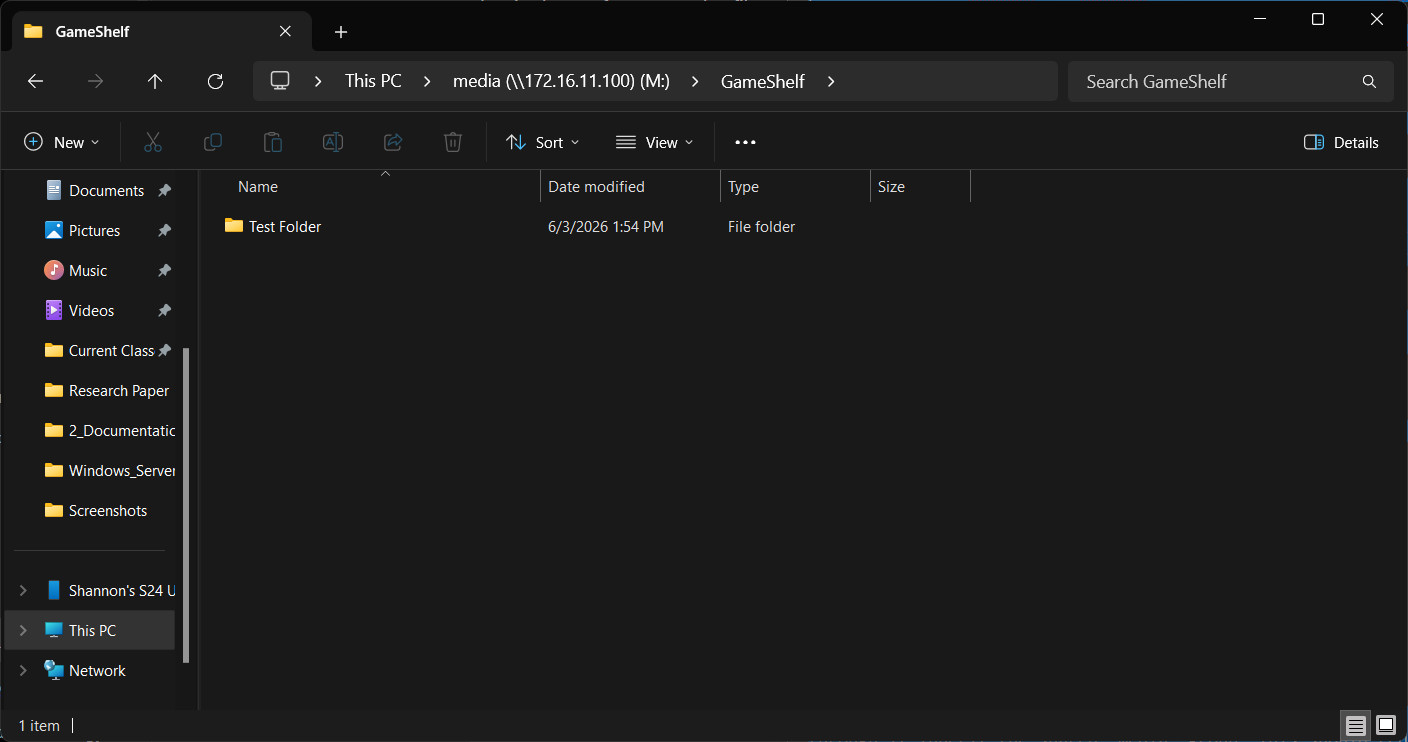

Final Share Layout#
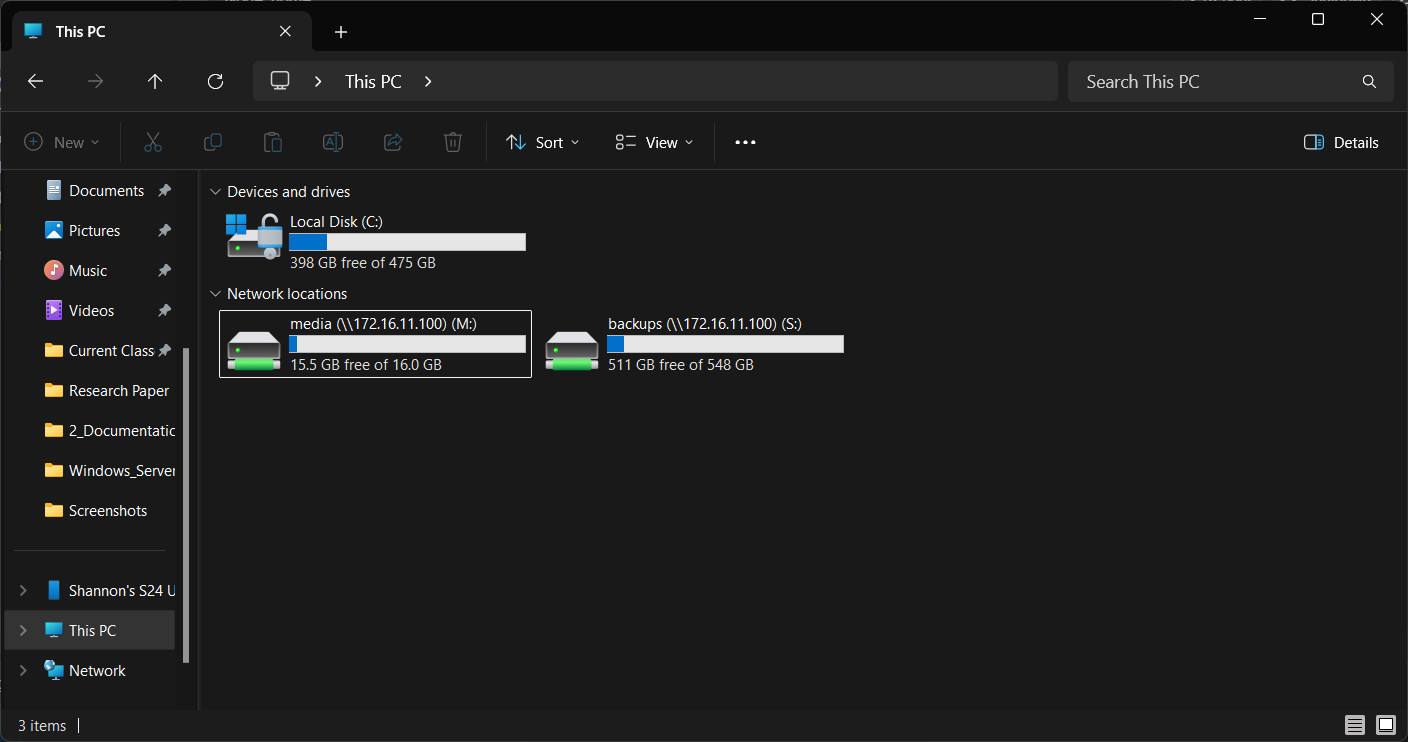
The final SMB container exposes two main shares, \\SMB\backups and \\SMB\media
The backups share points to the SMB-managed folder on SCHBKUPS.
/shares/backupsThe media share points to the media presentation path inside the container.
/shares/mediaInside the media share are the direct bind mounts for the Library and GameShelf datasets.
The backup share uses a scoped ACL model.
shannon = admin
idrac   = scoped access
The media share uses a shared group model that allows ownership by the media group rather than administrative ownership by the shannon user.
This gives me the flexibility to manage content from my workstation without turning the SMB container into the owner of every storage pool. It also sets up a cleaner foundation for the next phase, where I can begin building scheduled backup routines and placing manual configuration exports into their appropriate folders.
The follow-up article will focus more directly on backup routines, including scheduled exports, manual configuration backups, and where each backup target should land.
Reply by Email