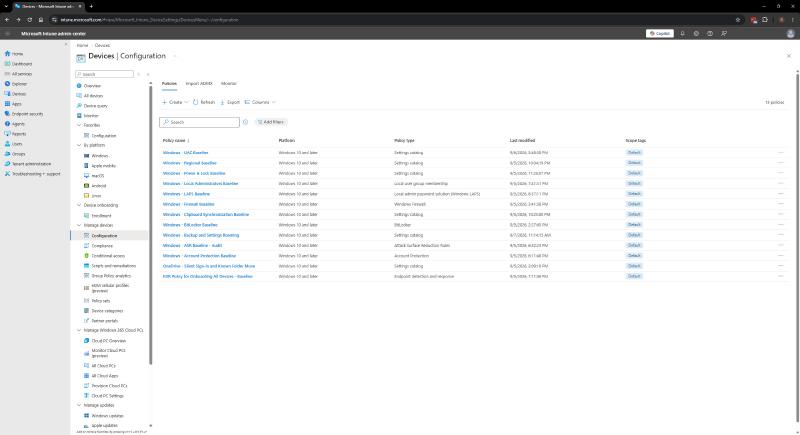
Security and Compliance Baseline#
Windows - BitLocker Baseline#
BitLocker encryption and recovery key escrow were confirmed on managed devices.
Policy name:
Windows - BitLocker Baseline
Require device encryption:
Enabled
Allow standard user encryption:
Enabled
Recovery password rotation:
Enabled for Microsoft Entra joined devices
OS drive encryption:
XTS-AES 256-bit
Fixed drive encryption:
XTS-AES 256-bit
Removable drive encryption:
XTS-AES 256-bitRequire TPM:
Enabled
Allow BitLocker without compatible TPM:
False
Startup PIN:
Not required/not allowed
Startup key:
Not required/not allowedRecovery password:
Required
Recovery key escrow:
Microsoft Entra ID/Intune
Hide recovery options from setup wizard:
Enabled
AD DS escrow requirements:
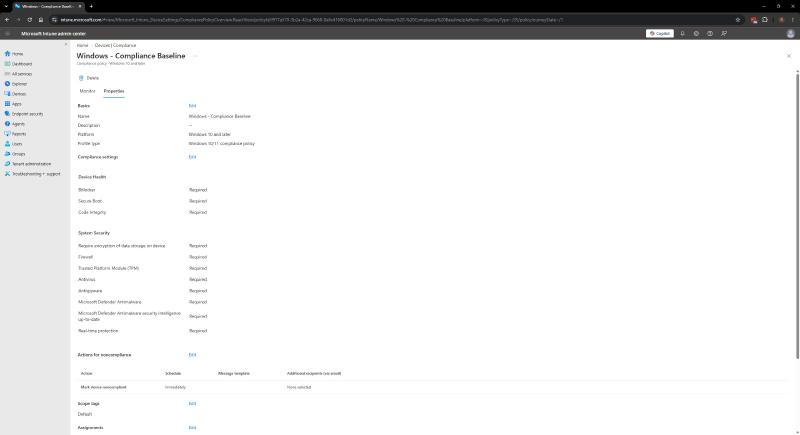
Not usedWindows - Compliance Baseline#
Policy name:
Windows - Compliance Baseline
BitLocker:
Required
Secure Boot:
Required
Code Integrity:
Required
Firewall:
Required
TPM:
Required
Antivirus:
Required
Antispyware:
Required
Microsoft Defender Antimalware:
Required
Real-time protection:
Required
Defender security intelligence up-to-date:
Required
Encryption of data storage:
RequiredWindows - Defender Antivirus Baseline#
Policy name:
Windows - Defender Antivirus Baseline
Real-time monitoring:
Allowed
Cloud protection:
Allowed
Behavior monitoring:
Allowed
Scan downloaded files and attachments:
Allowed
Email scanning:
Allowed
Full scan removable drive scanning:
Allowed
Cloud block level:
High
Sample submission:
Send safe samples automatically
Real-time scan direction:
Monitor all files
Script scanning:
Allowed
PUA protection:
Enabled/block mode
Archive scanning:
Allowed
Check signatures before running scan:
Enabled
Network protection:
Enabled/block modeThreat default actions:
Low severity:
Quarantine

Moderate severity:
Quarantine

High severity:
Remove

Severe severity:
Remove
Windows - App and Browser Protection Baseline#
Microsoft Defender SmartScreen was explicitly enforced through Intune so managed Windows devices do not depend only on the default local Windows configuration.
Policy name:
Windows - App and Browser Protection Baseline
Turn on Windows SmartScreen:
Yes
Block users from ignoring SmartScreen warnings:
YesThis keeps SmartScreen enabled for downloaded applications and files and prevents users from bypassing SmartScreen warnings on managed devices.
Windows - SmartScreen and Browser Protection Baseline#
A separate Settings Catalog policy was created for Microsoft Edge so browser-specific SmartScreen controls remain distinct from the Windows shell SmartScreen policy.
Policy name:
Windows - SmartScreen and Browser Protection Baseline
Configure Edge scareware blocker to share URLs of sites detected as potential tech scams with Microsoft Defender SmartScreen:
Enabled
Configure Microsoft Defender SmartScreen:
Enabled
Configure Microsoft Defender SmartScreen to block potentially unwanted apps:
Enabled
Prevent bypassing Microsoft Defender SmartScreen prompts for sites:
Enabled
Prevent bypassing of Microsoft Defender SmartScreen warnings about downloads:
EnabledMicrosoft Defender for Endpoint#
The Microsoft Defender for Endpoint connector was enabled in Intune following a basic setup as prompted by Intune.
Connection status:
Enabled
Defender portal settings:
Microsoft Intune connection:
On

Authenticated telemetry:
On
A default EDR policy was created by the Defender setup process, which was edited and used as the baseline.
Policy name:
EDR Policy for Onboarding All Devices - Baseline

Policy type:
Endpoint detection and response

Target:
MDM, MicrosoftSense

Configuration package type:
Auto from connector
Windows - Firewall Baseline#
Policy name:
Windows - Firewall Baseline
Domain, Private, and Public firewall profiles were configured with the same general model.
Firewall:
Enabled

Default inbound action:
Block

Default outbound action:
Allow

Local policy merge:
Enabled

Local IPsec policy merge:
Enabled

Authorized app/user preference merge:
Enabled

Shielded mode:
Disabled

Stealth mode:
Enabled/default

Inbound notifications:
Allowed/default
Logging:
Dropped packet logging:
Enabled

Successful connection logging:
Disabled

Log path:
%systemroot%\system32\LogFiles\Firewall\pfirewall.log

Maximum log size:
8192 KB
Local rule merge was intentionally left enabled to avoid breaking local services, printers, SMB, games, development tools, and home-lab workflows.
Windows - ASR Baseline#
ASR was initially deployed in Audit mode to measure impact before enforcement. After reviewing the baseline behavior, selected higher-confidence rules were moved to Block while other rules remain in Audit or Warn mode where additional observation or user flexibility is still useful.
Policy name:
Windows - ASR Baseline
ASR rules now use a mixed enforcement model rather than a single audit-only configuration. Higher-confidence protections are enforced in Block, while rules with greater potential to affect normal applications or administrative workflows remain in Audit or Warn as appropriate. Controlled Folder Access remains configured in Audit Mode.
Block abuse of exploited vulnerable signed drivers:
Block

Block Adobe Reader from creating child processes:
Audit

Block all Office applications from creating child processes:
Audit

Block credential stealing from LSASS:
Block

Block executable content from email client and webmail:
Block

Block executable files unless they meet prevalence, age, or trusted-list criteria:
Audit

Block execution of potentially obfuscated scripts:
Warn

Block JavaScript or VBScript from launching downloaded executable content:
Warn

Block Office applications from creating executable content:
Warn

Block Office applications from injecting code into other processes:
Warn

Block Office communication application from creating child processes:
Audit

Block persistence through WMI event subscription:
Block

Block process creations originating from PSExec and WMI commands:
Warn

Block untrusted and unsigned processes from USB:
Warn

Block Win32 API calls from Office macros:
Audit

Use advanced protection against ransomware:
Block

Block webshell creation for servers:
Block

Block use of copied or impersonated system tools:
Block

Block rebooting machine in Safe Mode:
Off (Default)

Controlled Folder Access:
Audit Mode