Device Model and Enrollment#
| Device | Status |
|---|---|
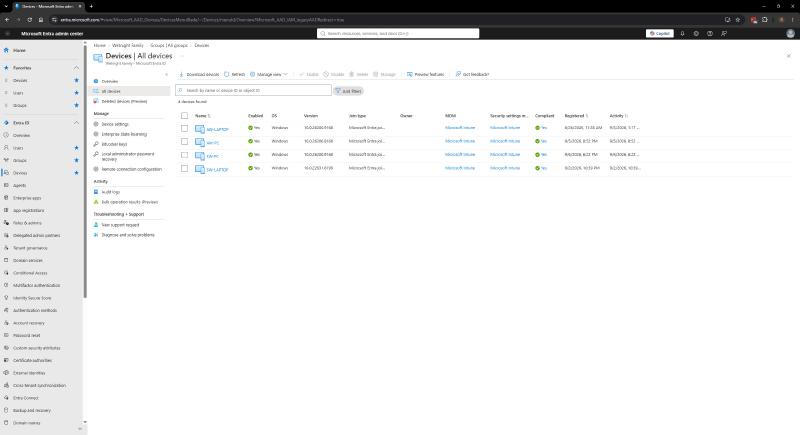
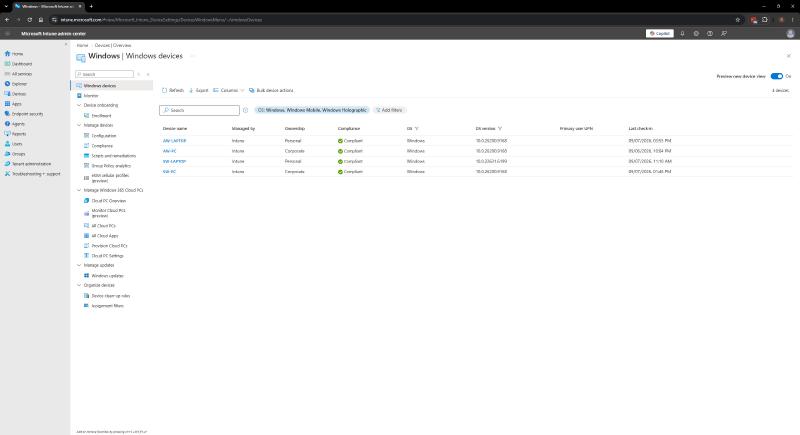
AW-LAPTOP | Microsoft Entra joined, Intune enrolled, compliant, BitLocker configured, LAPS configured, Defender onboarded |
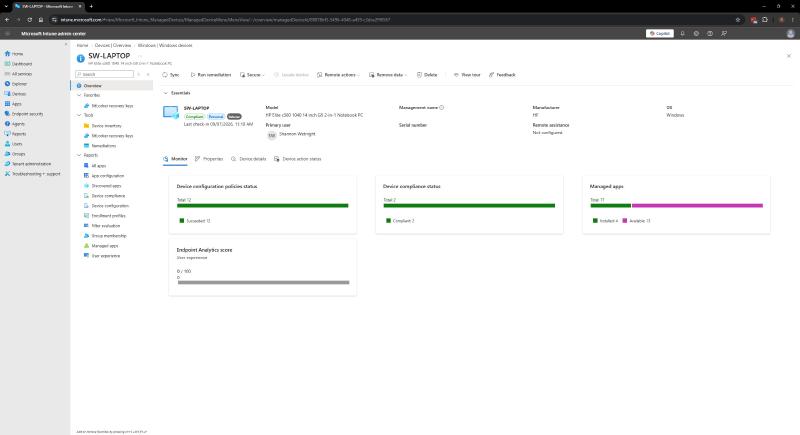
SW-LAPTOP | Microsoft Entra joined, Intune enrolled, compliant, BitLocker configured, LAPS configured, Defender onboarded |
AW-PC | Fresh OOBE setup completed, Microsoft Entra joined, Intune enrolled, compliant, BitLocker configured, LAPS configured, Defender onboarded |
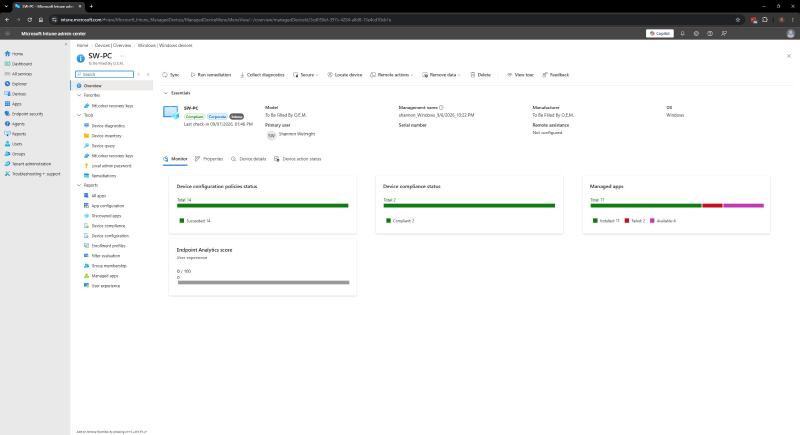
SW-PC | Fresh OOBE setup completed, Microsoft Entra joined, Intune enrolled, compliant, BitLocker configured, LAPS configured, Defender onboarded |
Device Join Model#
This tenant uses a Microsoft Entra-joined model. This means devices are joined directly to Microsoft Entra ID rather than an on-premises Active Directory domain. An on-premises Active Directory path may explored at a later date with learn.lab.
Windows OOBE or existing Windows install
- Sign in with managed Microsoft 365 account
- Microsoft Entra join
- Intune enrollment
- Device receives policy
- Device becomes compliant after baselines are established
- Device is usually marked not in compliance until a reboot after BitLocker is finished, from testing
Device Ownership#
Some devices may appear as Personal in Intune depending on how they were joined or enrolled rather than Corporate. This ownership label does not determine whether the policies are applied correctly and is simply a label that is applied based on a manual onboard relationship or one that is applied during OOBE.
Local administrator behavior is then solely controlled by cloud policy.
Enrollment Configuration#
Intune MDM enrollment was configured for the managed Site Administrators user scope. Fresh Windows devices signed in by scoped users should enroll into Intune during OOBE, which I validated after wiping both PCs and re-installing Windows to then join.
Existing Microsoft Entra joined devices may require manual enrollment if they were joined before Intune auto-enrollment was configured, which was exactly the behavior of the two laptops that were signed in with the wetnight.family accounts before Intune was set up.
Enrollment Status Page#
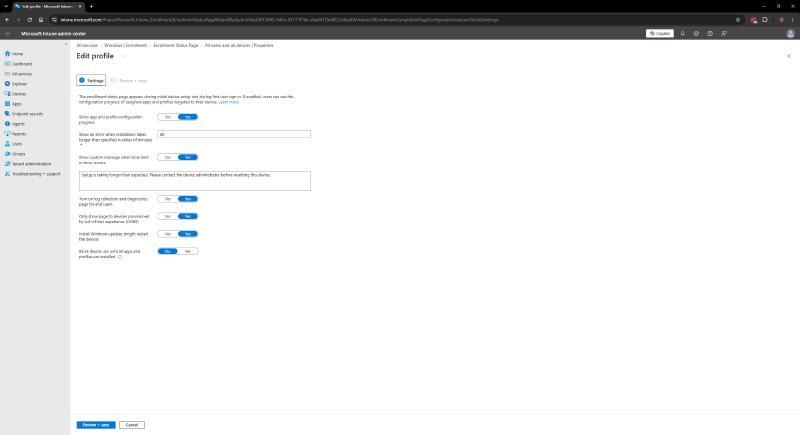
The existing default Enrollment Status Page profile was edited rather than creating a duplicate policy.
Profile:
All users and all devices

Show app and profile configuration progress:
Enabled

Timeout:
60 minutes

Custom timeout/error message:
Enabled

Diagnostics/log collection:
Enabled

Only show page to devices provisioned by OOBE:
Enabled

Block device use until all apps and profiles are installed:
Disabled/minimal blocking
The Enrollment Status Page was intentionally kept conservative. It provides visibility during setup without blocking the user on large application installs such as Microsoft 365 Apps.
Existing Device Enrollment Notes#
Some issues were encountered during the testing phase of enrollment policies. Existing devices that were already Microsoft Entra joined but not properly Intune enrolled required additional handling.
Error Message:
You don’t have the right privileges to perform this operation.The root cause for this error was that the signed-in user was not being treated as a local administrator for the enrollment action. This happened because I had removed the Microsoft Entra joined local administrator role from the user in preparation for the policy to take over, but had not fully enrolled the device yet, which completely stripped the ability to continue.
The resolution was simply to add the role back to the user, sync, joined, then remove the role again. This was only needed for devices that were joined before the current Intune and local administrator baseline existed.
Reply by Email