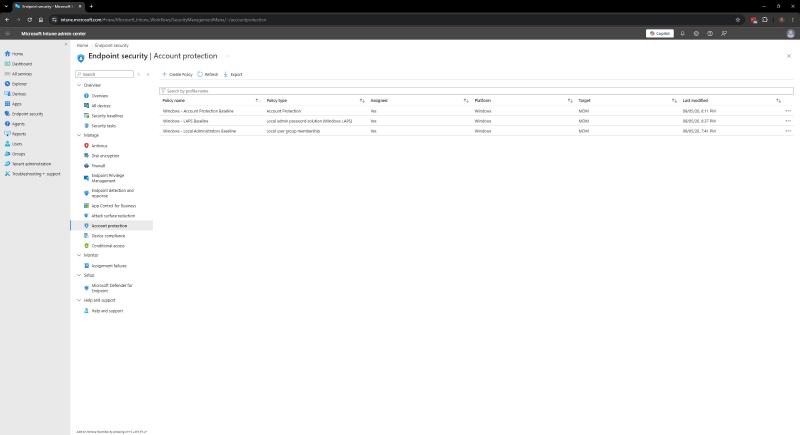
Account Protection and Local Admin#
Windows - Account Protection Baseline#
Policy name:
Windows - Account Protection Baseline
Use Windows Hello for Business:
Enabled
Use Windows Hello for Business - Device:
Enabled
Use Windows Hello for Business - User:
Enabled
Enhanced anti-spoofing:
Enabled
Minimum PIN length:
6
PIN history:
3
Require security device:
Enabled
Lowercase letters:
Allowed
Uppercase letters:
Allowed
Special characters:
Allowed
PIN expiration:
Not configured
Maximum PIN length:
Not configured
PIN recovery:
Not configuredWindows Hello was configured to be secure without making normal sign-in painful. Letters and special characters are allowed and encouraged, but not required at this time.
Windows Hello PIN UAC Issue#
One device had an issue where UAC failed when using the Windows Hello PIN/security-device credential, even though the same PIN worked for normal sign-in.
The issue was resolved by resetting the Windows Hello PIN from the sign-in screen using Forgot my PIN. During PIN recreation, the option to allow letters/symbols was selected, and the same PIN value was reused. After that, UAC elevation worked correctly.
This appeared to be caused by a mismatch between the original PIN content and the PIN complexity option not selected during initial setup, despite allowing for that complexity to be assigned.
Windows - LAPS Baseline#
Policy name:
Windows - LAPS Baseline
Backup directory:
Microsoft Entra ID only
Password age:
30 days
Password complexity:
Large letters + small letters + numbers + special characters
Password length:
16
Post-authentication action:
Reset password and log off the managed account
Post-authentication reset delay:
24 hoursAutomatic account management:
Enabled
Target:
Manage a new custom administrator account
Randomize account name:
No
Account enabled:
Yes
Account name/prefix:
wlaps-adminRecovery Path#
Microsoft Entra admin center
- Devices
  - Local administrator password recovery
  - Search device
- Retrieve wlaps-admin passwordUsage#
.\wlaps-admin(or)
DEVICE-NAME\wlaps-adminThe wlaps-admin account is the local device recovery account and is separate from tenant-level administration.
Windows - Local Administrators Baseline#
Policy name:
Windows - Local Administrators Baseline
Local group:
Administrators
Action:
Add/Update
Selected group:
Site AdministratorsThis policy adds Site Administrators to the local Administrators group on managed devices. Additionally, we use Add/Update, not Replace, to prevent Intune from interfering with the LAPS-managed wlaps-admin account.
Windows - UAC Baseline#
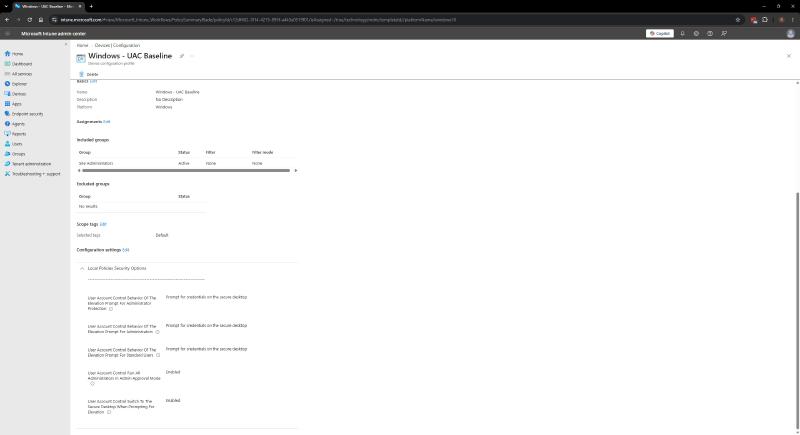
This policy was created after discovering that existing laptops allowed local administrators to elevate with a simple Yes/No UAC prompt. This policy enforcs intentional sign-in for installations and changes to the device via entered credentials and supresses the simple Yes/No UAC prompt.
Policy name:
Windows - UAC Baseline
User Account Control: Behavior of the elevation prompt for Administrator Protection:
Prompt for credentials on the secure desktop
User Account Control: Behavior of the elevation prompt for administrators:
Prompt for credentials on the secure desktop
User Account Control: Behavior of the elevation prompt for standard users:
Prompt for credentials on the secure desktop
User Account Control: Run all administrators in Admin Approval Mode:
Enabled
User Account Control: Switch to the secure desktop when prompting for elevation:
EnabledSelected group:
Site Administrators